 Turnside
Vinyl now playing on your TV.
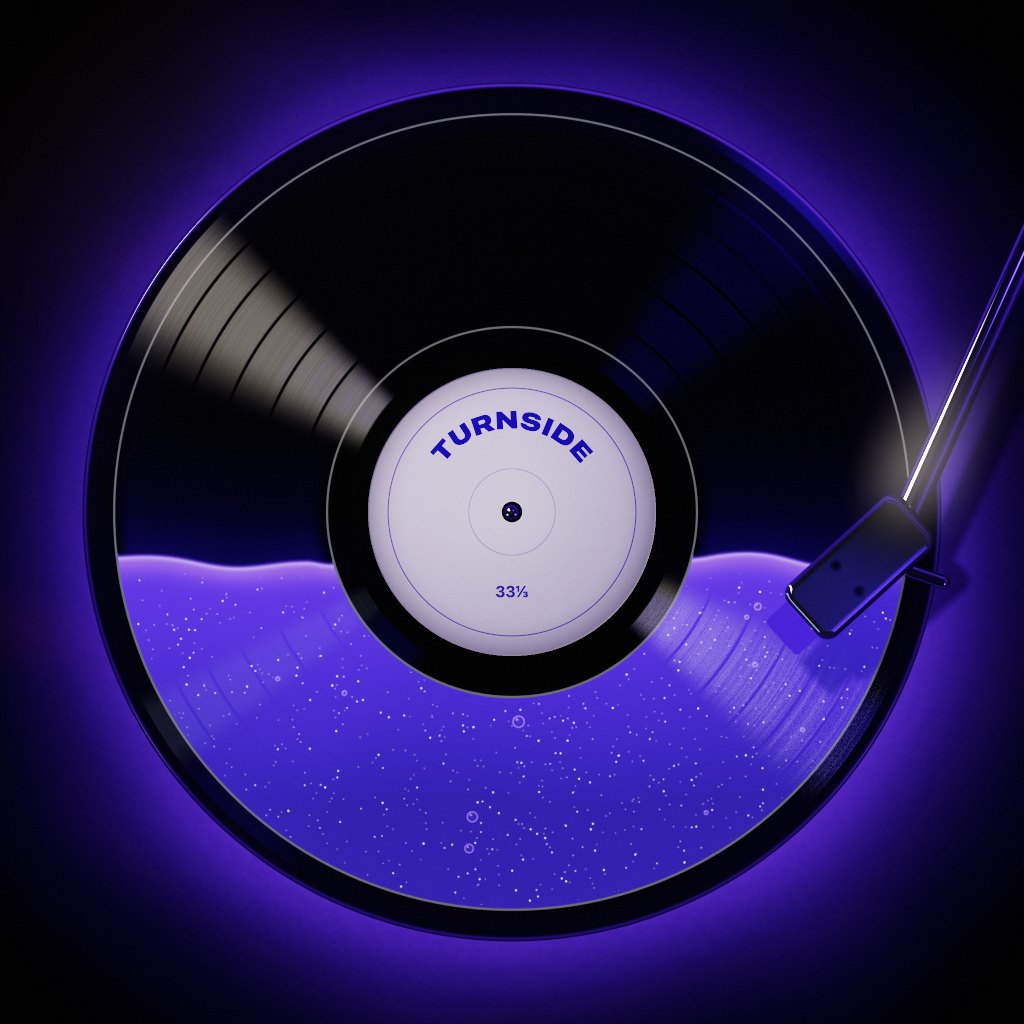
Put a record on and Turnside names it, then follows the whole side on your iPhone, iPad or TV: the track playing, the time left, and when to turn the record over.
For iPhone and iPad with iOS 27, and Apple TV with tvOS 26.
Starting a record
- Put a record on.
- Tap Listen, or tap the record.
- The first time, allow the microphone and Apple Music.
In a few seconds Turnside names the song, loads the album and its sides, and follows the side from there.
On Apple TV
Apple TV has no microphone, so Turnside listens through an iPhone or iPad nearby. Choose Connect iPhone (Continuity Microphone, on an Apple TV 4K from 2021 or later).
Or turn on Show on Apple TV in Turnside on your iPhone, then choose Follow on the Apple TV. With the Siri Remote alone, use Find a record.
When it picks the wrong record
Touch and hold the record and choose Not this record? (on Apple TV, it’s in More). It lists the other albums the song is on and the album’s vinyl pressings, each with its own sides.
If it can’t name a record at all, play it a little louder or bring the phone closer to the speakers, then listen again. Or use Find a record: search for the album, pick the side, and tap as the needle drops.
When it falls out of step
Turnside listens again just after each track should end, so a skipped track or a longer pressing is caught at the next change. Tap Listen again to check at once.
The microphone
It opens for a few seconds at each track change. With Feel the music on, it stays open while the record turns, so the iPhone can tap along; you can turn that off in More. The orange dot shows when it’s on, and no sound is kept. Privacy has the rest.
Contact
Write to me with a question, a bug, or a record Turnside can’t follow. Say which device and which record, and what you saw.
privacy@karano.me